
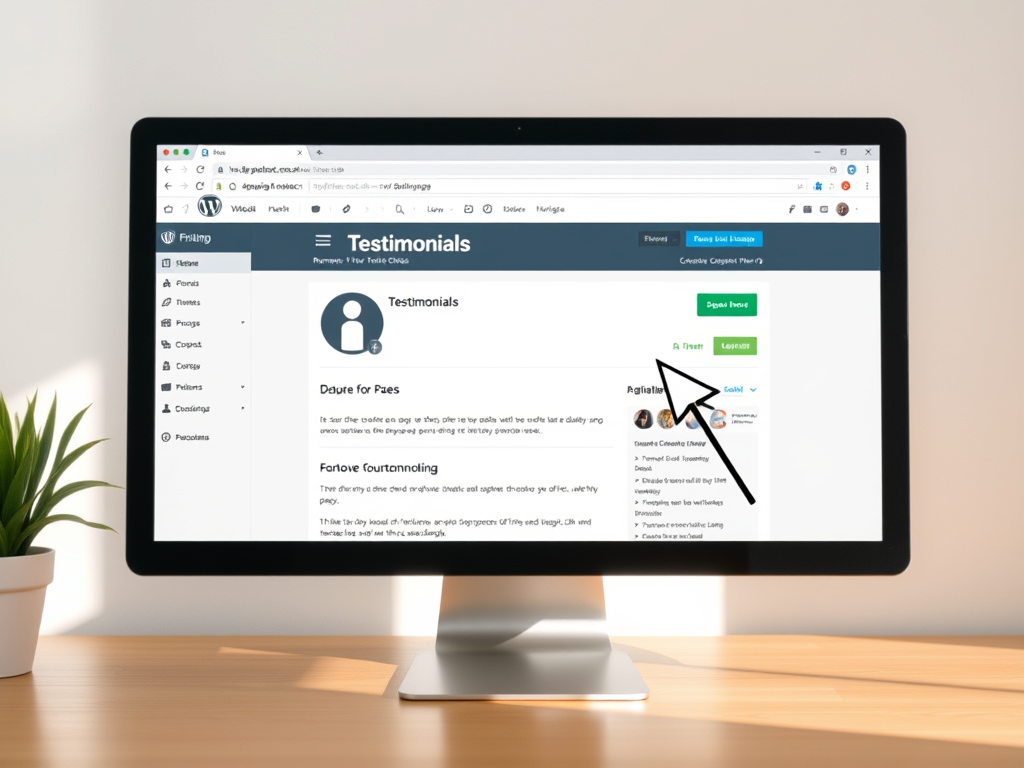
If a Testimonials page appears on a WordPress.com site, it may come from a classic theme’s testimonial content type, a navigation link, or a Query Loop or other block that displays testimonial content. The right fix depends on whether you want to hide the menu link, stop displaying testimonials, or remove the testimonial content entirely.
This guide will show you how to remove the text Testimonials page on WordPress.com, step by step, and offer smart alternatives depending on your site’s goals. Whether you’re running a business, portfolio, or blog, you deserve full control over your site’s layout.
Table of Contents:
Why Does the Testimonials Page Appear Automatically?
Some WordPress.com themes come with custom content types, like:
- Testimonials
- Projects/Portfolio
- Team Members
These are enabled by default or during initial theme setup. When you add a testimonial through the dashboard, WordPress.com may automatically create a /testimonials/ archive page. This page collects all testimonials you’ve entered into one place.
Even if you didn’t manually create a page called “Testimonials,” your theme may link to it automatically, especially in the site menu or footer.
Step-by-Step: How to Remove the Testimonials Page on WordPress.com
1. Remove the Testimonials Archive from the Navigation Menu
- For a block theme, go to Appearance > Editor and open the Navigation block; for a classic theme, go to Appearance > Menus or Appearance > Customize > Menus
- Look for “Testimonials” or
/testimonials/in your menu structure - Click it, then select Remove
- Save the menu
This doesn’t delete the testimonials, but it removes the link from your site’s visible navigation.
2. Switch to a Theme That Doesn’t Use Testimonials
- Visit Appearance > Themes
- Preview a modern theme and confirm that its templates and navigation do not display testimonial content before activating it
- Preview and activate a new theme
Some themes (like Twenty Twenty-One or Seedlet) are minimal and won’t auto-create testimonial pages unless you add them.
3. Delete Testimonials Content from Your Site
- Open the site dashboard and choose Testimonials if that content type appears; otherwise check Pages, Posts, or the testimonial category used by the site
- If there’s a “Testimonials” content type listed, open it
- Trash all testimonial entries
Once all testimonial entries are deleted, the archive page typically disappears automatically.
4. Disable Custom Content Types on Business Plan
On classic-theme sites that use WordPress.com’s testimonial content type, go to Settings > Writing and look for Content types. Uncheck Testimonials and save. This disables that archive feature; preserve or export any testimonial content you may need first.
This requires access to plugins or custom code, which are only available on:
- WordPress.com sites using the applicable classic-theme content-type settings
- Paid WordPress.com plans can also install plugins when a plugin-based solution is genuinely needed
👉 Upgrade to WordPress.com Business to gain full control over custom post types and advanced editing tools.
5. Use the Site Editor to Manually Remove the Testimonials Block
Some block-based themes use Full Site Editing (FSE). If so:
- Go to Appearance > Editor
- Navigate to the Page Template or Header/Footer
- Look for a block called Query Loop, Testimonials, or something similar
- Click the three dots and select Remove Block
- Save changes
This allows you to fully remove the reference to testimonials even if a theme tries to insert it dynamically.
6. Check Widgets and Footer Links
- Go to Appearance > Widgets
- Expand any widget areas like Footer, Sidebar, or Header
- Look for any links to “Testimonials” or
/testimonials/ - Remove or replace them as needed
Sometimes a testimonials link is added in a footer text widget by default. Cleaning this up keeps your site’s presentation tight and professional.
Optional: Replace the Page With a More Flexible Testimonials Section
If you want to showcase client testimonials without using the built-in page, try this:
Use a Block Instead:
- Create a new page or edit your homepage
- Add a Quote, Pullquote, or Testimonial Block
- Copy/paste reviews or feedback into it
You can style the section manually or use a supported carousel block or plugin when that presentation fits the site.
Use a Columns Layout:
To display several short testimonials:
- Insert a Columns Block
- Add a Paragraph or Quote Block in each column
- Style the layout with background colors or spacing to match your brand
This gives you total visual control while avoiding the rigid testimonial archive page.
Bonus: What If the Testimonials Page Still Shows Up?
If you’ve removed all testimonials and it still shows up:
- Clear your site cache
- Revisit Appearance > Customize > Homepage Settings to ensure it’s not set as a static page
- Check if any widget or footer still links to
/testimonials/ - If you’re using an old theme, consider switching to a newer block-based one
- Remove internal links to the unwanted archive and allow Google to recrawl the resulting redirect, noindex, or not-found response; use Search Console’s removal tool only when temporary urgent removal is necessary
Still stuck? Reach out to WordPress.com support if you’re on a paid plan — they can help resolve theme quirks.
Alternatives to Built-In Testimonials
Embed Reviews From Other Platforms:
Use external review embeds instead of native testimonials. Examples:
- Google Reviews (via plugins or iframe embeds)
- Yelp badges
- Trustpilot widgets
- Social proof tools like Proof or Fomo
These can be added via HTML block or plugin support on higher-tier plans.
Collect Testimonials with a Form
Use a Contact Form or Feedback Form to collect testimonials from customers. Then:
- Add the best quotes to a Testimonials section using blocks
- Rotate them with a carousel block (Business Plan only)
Final Thoughts
The Testimonials page on WordPress.com can be helpful in some contexts — but not everyone needs it. Whether you’re aiming for a minimal layout or using other strategies to build trust, removing the text testimonials page is completely doable.
By following the steps above, you can clean up your site, remove unwanted pages, and take full control over your content.
And if you’re ready to unlock the full customization power of WordPress, including plugins, code access, and WooCommerce features:
👉 Get WordPress.com Business Plan today and design your site your way.

What are your thoughts?