
WordPress powers over 40% of all websites. That reach is incredible, but it also makes WordPress the single biggest target for hackers worldwide. Every day, attackers scan for weak passwords, outdated plugins, or sites missing SSL certificates. And for site owners, one breach can mean downtime, lost revenue, or even permanent data loss.
The good news is that WordPress security doesn’t have to be overwhelming. You don’t need 30 different “hacks” or a developer’s skill set. With a handful of smart, practical steps, you can lock down your site, prevent 99% of common attacks, and gain real peace of mind.
In this guide, we’ll cover how to secure a WordPress site in 2025 using the most effective methods: SSL, updates, admin login protection, authentication, file hardening, security plugins, and secure hosting. Along the way, we’ll also address common security warnings like “Your connection is not fully secure” and how to fix them.
Quick Answer: The fastest way to secure a WordPress site is to install SSL (HTTPS), keep WordPress updated, and protect your login with a hidden URL, strong password, and two-factor authentication. For the simplest path, managed hosting providers like WordPress.com and Pressable handle SSL, updates, and backups automatically, while plugins like Jetpack Security add brute-force protection and malware scans.
Table of Contents:
- 1. Install an SSL Certificate (HTTPS)
- 2. Keep Core, Plugins, and Themes Updated
- 3. Secure Your WordPress Admin URL
- 4. Use Strong Authentication
- 5. Harden wp-config.php and File Permissions
- 6. Add a Security Plugin
- 7. Choose Secure Hosting
- 8. Bonus: Monitor and Backup Regularly
- FAQ: Securing a WordPress Site
- Final Thoughts
1. Install an SSL Certificate (HTTPS)
One of the most visible signs of a secure site is that little padlock in the browser bar. Without SSL, browsers warn visitors with a red “Not Secure” message, which can scare off readers and tank conversions.
Why it matters
SSL (Secure Sockets Layer) encrypts data between your visitor’s browser and your server. Without it, login credentials, form data, and even checkout details can be intercepted. Google also considers HTTPS a ranking factor, so your site can get a small SEO boost simply by securing it.
How to set up SSL
- WordPress.com users: SSL is automatic. Every plan includes HTTPS, no setup needed.
- cPanel hosts: Look for the SSL/TLS or Let’s Encrypt option in your dashboard. Activate with one click. On Bluehost, for example, you log into cPanel, scroll down to “Security,” select Let’s Encrypt SSL, and click “Enable.” Within minutes your site should load with HTTPS.
- Manual setup: If your host doesn’t support Let’s Encrypt, buy a certificate from your registrar and configure it via your hosting control panel.
Forcing HTTPS site-wide
Even with SSL installed, some sites show “Your connection is not fully secure” because mixed content (HTTP images/scripts) remains. Fix this by:
- Installing the Really Simple SSL plugin.
- Or editing
.htaccesswith:

👉 Related guide: Restore a WordPress Site
2. Keep Core, Plugins, and Themes Updated
Outdated WordPress software is the #1 cause of hacked sites. Attackers scan for known vulnerabilities, then exploit them at scale.
Best practices
- Enable auto-updates for WordPress core (toggle in Dashboard → Updates).
- Update plugins weekly, especially security-related ones.
- Remove unused themes/plugins, inactive code can still be exploited.
Real-world example
A few years ago, a vulnerability in a popular slider plugin (Revolution Slider) was used to compromise tens of thousands of sites. Many victims weren’t even using the slider, they just had the plugin installed and inactive. Keeping everything updated is your single best defense.
Troubleshooting updates
- Before updating, run a quick backup with Jetpack Backup or UpdraftPlus.
- If an update breaks your site, roll back using a restore point or a rollback plugin like WP Rollback.
👉 See: Best WordPress Plugins
3. Secure Your WordPress Admin URL
Every WordPress site has the same default login URL: /wp-admin or /wp-login.php. That makes it easy for bots to hammer login pages with brute-force attempts.
How to hide your login page
- Install WPS Hide Login or Jetpack Security.
- Change the login slug to something unique (e.g.,
/my-login-page). - Save and test your new login URL before logging out.
Now, if bots try /wp-admin, they’ll just get a 404 error.
Bonus protections
- Add reCAPTCHA to your login screen.
- Limit login attempts (built into many security plugins).
- Restrict login by IP if you have a static address.
👉 Related: Jetpack Security Plugin
4. Use Strong Authentication
Passwords alone aren’t enough in 2025. Data breaches happen daily, and weak credentials are quickly tested against login forms.
Strengthen your login
- Use a password manager (Bitwarden, 1Password) to create random 12–16 character passwords.
- Enable two-factor authentication (2FA): In Jetpack → Settings → Security → Two-Factor Authentication, scan the QR code with your authenticator app. Now, even if your password leaks, hackers can’t get in without your phone.
- Restrict admin roles: Only assign Administrator to people who truly need it. Remove old accounts or downgrade them to Editor.
Why this matters
A weak password is like leaving your front door unlocked. 2FA adds a second deadbolt, even if someone steals the key, they can’t open the door without the second factor.
5. Harden wp-config.php and File Permissions
A compromised file system can allow hackers to deface your site, steal data, or plant malware. Securing key files prevents many attacks.
wp-config.php
- Move it one directory above
/public_html/if your host allows. - Change salts using the WordPress.org generator
File permissions
- Use 644 for files, 755 for folders. Think of it as “read/write for the owner, read-only for others.”
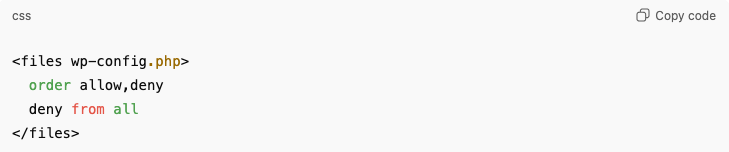
- Lock down
wp-config.phpfurther with:

Disable file editing
Add this line to wp-config.php to stop attackers editing theme/plugin files via the dashboard:
6. Add a Security Plugin
Even the most careful site owners can miss something. A security plugin adds an extra layer of protection.
Popular options
- Jetpack Security (real-time backups, brute-force protection, downtime monitoring).
- Wordfence (firewall + malware scanner).
- iThemes Security (login hardening, file change detection).
Comparison Table: Security Plugins
| Plugin | Best For | Key Features | Pricing |
|---|---|---|---|
| Jetpack Security | Small businesses, blogs | Backups, 2FA, brute-force, monitoring | From $14/mo |
| Wordfence | Tech-savvy site owners | Firewall, malware scanner, 2FA | Free / Paid |
| iThemes Security | Developers, agencies | Login lockdown, file monitoring | Free / Paid |
Choosing the right one
- Solo blogger? → Jetpack Security for simplicity.
- Agency managing multiple sites? → Wordfence for advanced control.
- Developer with staging sites? → iThemes for granular monitoring.
👉 See also: What Jetpack Plugin Does
7. Choose Secure Hosting
No amount of plugins can fix a weak server. Hosting is the foundation of security.
Why hosting matters
Cheap shared hosting is like living in an apartment building with broken locks, if your neighbor gets hacked, your site might too. Managed WordPress hosting, by contrast, adds locks, guards, and fire alarms.
Benefits of managed hosting
- Automatic SSL on every site.
- Daily backups and easy restores.
- Staging environments for safe testing.
- Server-level firewalls and DDoS protection.
WordPress.com and Pressable both provide these protections out of the box. With managed hosting, you skip half the manual hardening steps.
👉 Related: What is Pressable
8. Bonus: Monitor and Backup Regularly
Security isn’t just about prevention, it’s about fast recovery when something goes wrong.
Monitoring
Use Jetpack Monitor or UptimeRobot to get alerts if your site goes down. Setting up UptimeRobot takes 2 minutes: enter your site URL, choose an interval (5 minutes), and add your email.
Backups
Jetpack Backup creates real-time save points, so every order or post is preserved. Alternatives like BlogVault and UpdraftPlus provide scheduled backups.
Why it matters
Imagine running a WooCommerce store. At 3 a.m., your site goes down. Jetpack Monitor pings you instantly, you restore from a backup, and within 15 minutes you’re back online with no lost orders.
👉 Related: Restore a WordPress Site
FAQ: Securing a WordPress Site
1. How do I know if my WordPress site is secure?
Check for HTTPS, run a malware scan with Jetpack or Wordfence, and ensure updates are current.
2. Do I need SSL if I don’t sell anything?
Yes, SSL protects logins and builds visitor trust. Google also favors HTTPS in rankings.
3. What is the best free WordPress security plugin?
Wordfence and iThemes offer strong free tiers. Jetpack Security provides more complete coverage in its paid version.
4. Is WordPress.com more secure than WordPress.org?
Yes. WordPress.com manages updates, SSL, and backups for you. WordPress.org security depends on your hosting setup.
5. How do I hide my WordPress version?
Add this snippet to functions.php:

6. How do I stop brute-force login attempts?
Limit login attempts with a plugin, use Jetpack’s login protection, and enable 2FA.
7. Can hackers still break into a WordPress site with SSL?
SSL only encrypts data in transit. You still need strong logins, updates, and secure hosting.
8. Does changing the admin URL really help?
Yes, it hides your login page from automated bots, reducing brute-force attempts significantly.
9. Should I disable XML-RPC in WordPress?
If you don’t use remote publishing tools, disabling XML-RPC can stop attackers from using it for brute-force amplification.
10. How often should I back up my site?
At least daily for active blogs or eCommerce stores. Real-time backups are ideal for WooCommerce.
11. How do I fix “Your connection to this site is not fully secure” in WordPress?
This usually means your SSL is active but you still have mixed content (images, scripts, or CSS loading over HTTP). Install the Really Simple SSL plugin or update media links in your database to HTTPS.
12. Is a free SSL certificate secure enough?
Yes, free certificates from Let’s Encrypt provide the same level of encryption as paid ones. The main difference is support and warranty, not security.
13. How do I know if my WordPress site has been hacked?
Signs include unexpected redirects, strange users in your dashboard, or unknown files in your hosting account. Plugins like Jetpack Security or Wordfence can run scans to detect malware.
14. Can I secure WordPress without plugins?
Yes, you can harden security manually by editing .htaccess, adjusting file permissions, and configuring strong passwords. But for beginners, plugins make it easier and safer.
15. What is the safest way to manage multiple WordPress sites?
Use a managed host (like WordPress.com or Pressable) or a centralized management plugin (like Jetpack or MainWP) to handle updates and security from one dashboard.
16. Do I need a firewall for WordPress?
A firewall blocks malicious traffic before it hits your site. Many hosts include one at the server level. If not, Wordfence or Sucuri can add an application firewall inside WordPress.
17. How do I secure the WordPress admin email?
Make sure your admin email is not public, use a strong password for that inbox, and enable 2FA on the email account. If hackers compromise your admin email, they can reset your WordPress password.
18. Should I change the default ‘admin’ username?
Yes, hackers target “admin” as a first guess. Create a new Administrator account with a unique name, log in with it, then delete the old “admin” account.
19. How do I secure WordPress against brute-force login attacks?
Hide your login URL, limit login attempts, enable 2FA, and use Jetpack’s brute-force protection. These steps stop bots from trying unlimited passwords.
20. Is it safe to use free WordPress themes and plugins?
Free tools from the official WordPress.org directory are generally safe. Avoid downloading themes or plugins from unverified third-party sites, as these may contain malware.
21. How often should I run a security scan on my WordPress site?
At least weekly for small blogs, and daily (or real-time) for business and eCommerce sites. Jetpack and Wordfence can run automated scans on a schedule.
22. Can I secure WordPress with just my hosting provider?
A good host adds SSL, backups, and firewalls, but you’ll still want plugin-level protection for malware scanning, login security, and monitoring. Hosting + plugin is the best combo.
Final Thoughts
Securing a WordPress site isn’t about dozens of hacks, it’s about mastering a few essential habits. Install SSL, keep everything updated, lock down your login, and use a security plugin. Combine that with secure hosting, and you’ll prevent most attacks before they even start.
If you want the simplest path, choose a managed platform like WordPress.com or Pressable. These hosts bundle SSL, backups, and security monitoring so you can focus on growing your site, not guarding it.
👉 Ready to simplify your security? Tap here to explore WordPress.com plans with built-in SSL, backups, and malware protection
Internal References:
 AH Web Works
What do you think?